Preparation
Before you can upload your app to the Play Store, you must provide us with the following assets. Please provide all assets in one ZIP file. Signing keys, for example, are often blocked by virus scanners in mailboxes.
Required for all deliveries
- Application id: Application id is a unique identifier for your app, typically following the reverse domain name notation (e.g., com.example.myapp).
- Final signing key: Key used to sign the final app build.
Required only for AAB deliveries
-
Application icon: The icon which will be displayed when the user installs the app. The icon needs to follow the Google specifications (taken from Google manual):
- Final size: 512px x 512px
- Format: 32-bit PNG
- Color space: sRGB
- Max file size: 1024KB
- Shape: Full square – Google Play dynamically handles masking. Radius will be equivalent to 20% of icon size.
- Shadow: None – Google Play dynamically handles shadows. See 'Shadows' section below on including shadows within your artwork.
-
Application name: Application name is the display name of your app as it will appear to users when the app is installed. You can choose the display name of the app in the app store yourself.
Signing key
We recommend to use Play Signing. Play App Signing is a service that Google provides to help developers protect their apps from unauthorized distribution.
When you enroll in Play App Signing, Google will manage and protect your app's signing key for you.
To better understand Play Signing see the following graph:
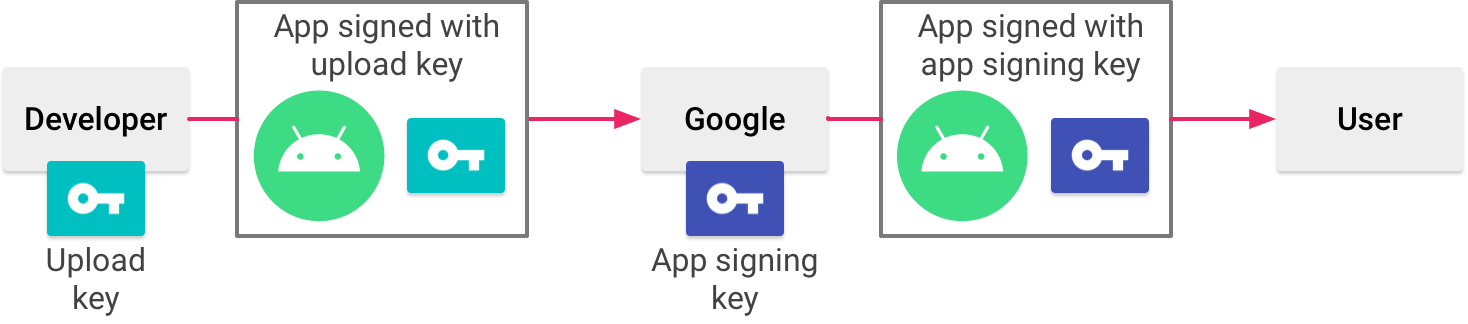
- The app is signed in the build pipeline with the upload key.
- During the upload Google checks the upload key to ensure that only valid and trusted builds are submitted.
- Google signs the app with the final app signing key, which is stored in Google's secure vaults.
Play Signing On (recommended)
After you have created your app store listing, you can access the Play Signature certificate. We have recorded a video for you on how to obtain the certificate and send it to us. Google changes the design of the Play Console frequently. If you find the following video to be outdated, please notify us. We will help you as quickly as possible.
Play Signing Off
If you choose to opt out of Play Signing, you need to encrypt and upload the private final signing key to the Play Console. After you have performed this action you can visit the App Signing page of the Play Console and download the signing key.