Upload to the Play Store
Google will ask you certain questions when you upload a new app to the Play Store.
This page seeks to answer the most common ones.
The Google Play Console offers several tracks for app uploads:
- Internal Testing Track (for quick testing with limited users)
- Closed Testing Track (for broader, group-specific testing)
- Open Testing Track (for public beta testing)
- Production Track (for general availability)
Production builds of PhonePOS verify if the app's signature is trusted.
Google states for the Internal Testing Track:
"Uploaded artifacts for internal app sharing [...] are automatically re-signed with an Internal App Sharing key, which is automatically created for your app by Google." Reference.
This means apps in the Internal Testing Track are re-signed with a key that differs from your trusted production key. As a result, the signature will not be recognized as trusted, causing production PhonePOS apps to crash when uploaded in the Internal Testing Track.
Data Safety Section
Google will ask you what and how the uploaded app processes data.
In this chapter we will guide you through this examination process.
Before you start please keep in mind:
- If you upload the PhonePOS APK directly, you can directly follow this guide.
- If you integrate the PhonePOS SDK in your own app and also process data further, you might need to include your data processing practices also in the response you provide to Google.
Select App content
Click on App content, then under Data Safety click on Start declaration
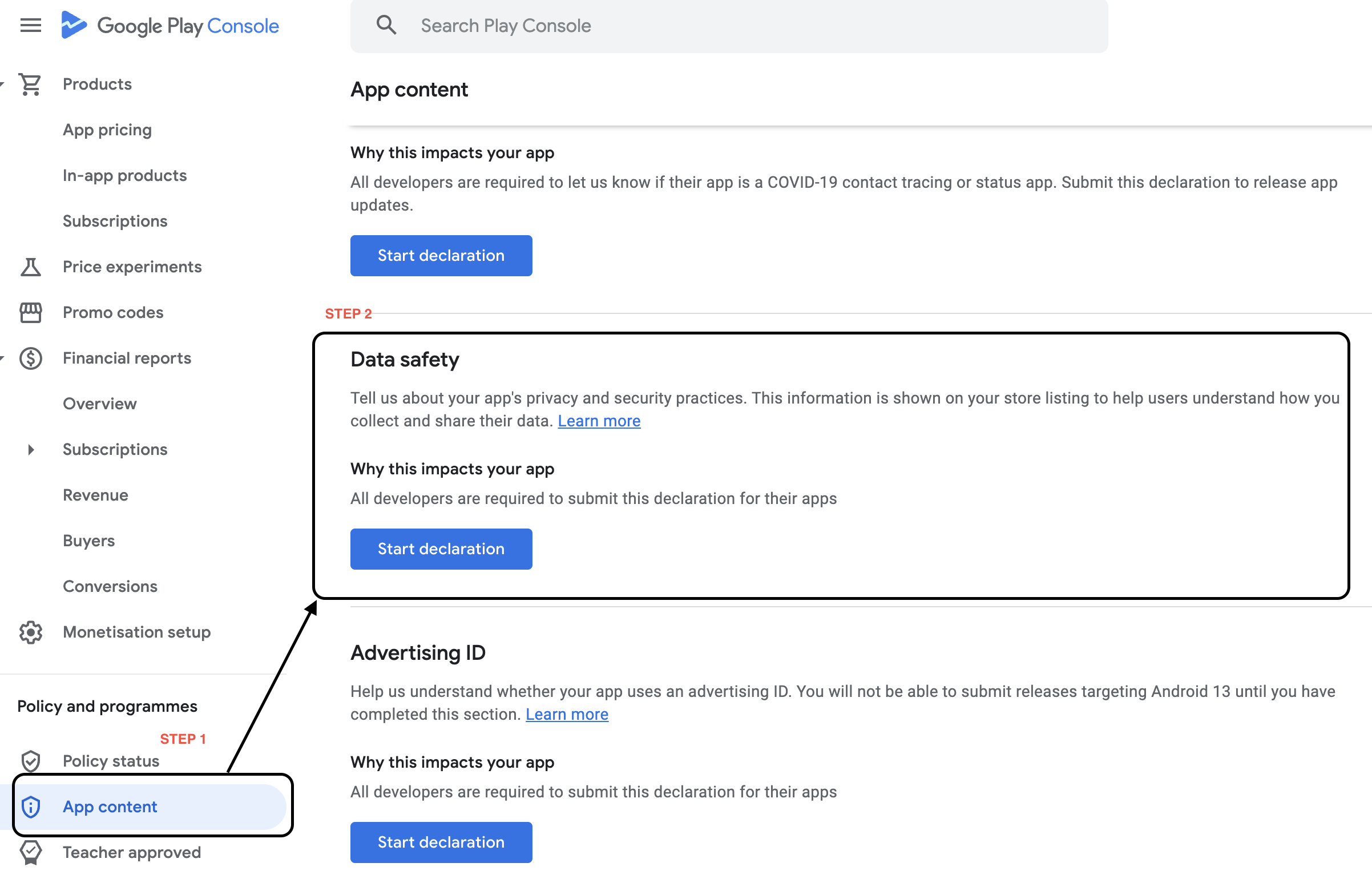
Start Declaration
Now click on Next
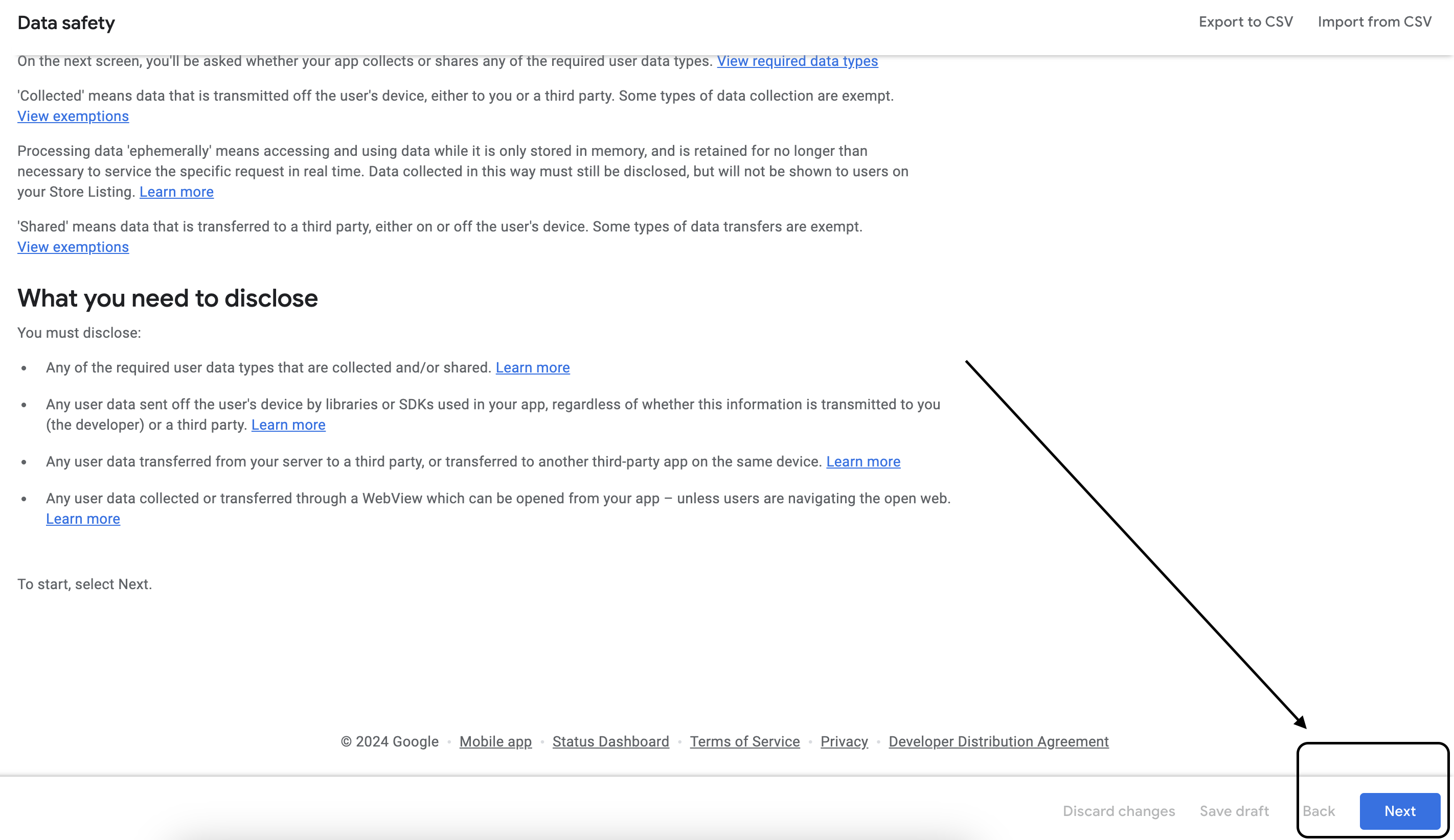
Data collection and security
Answer the questions as shown below:
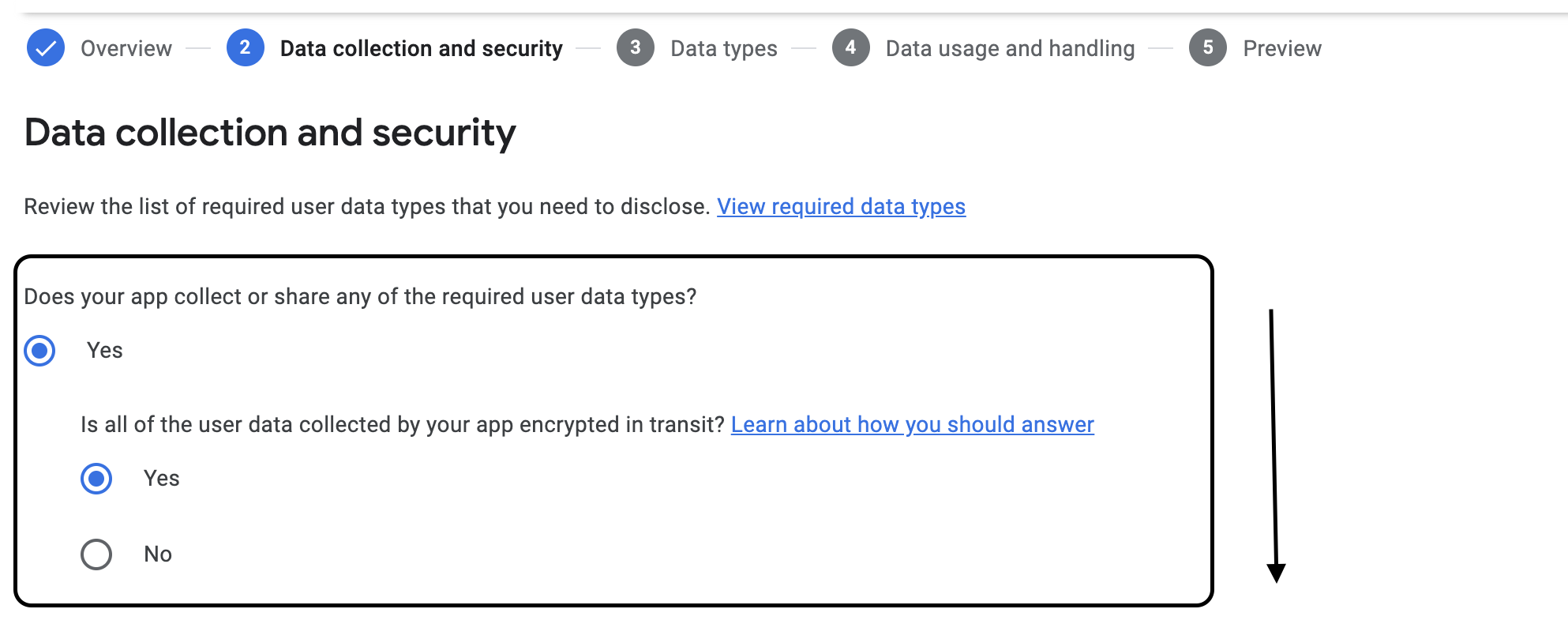
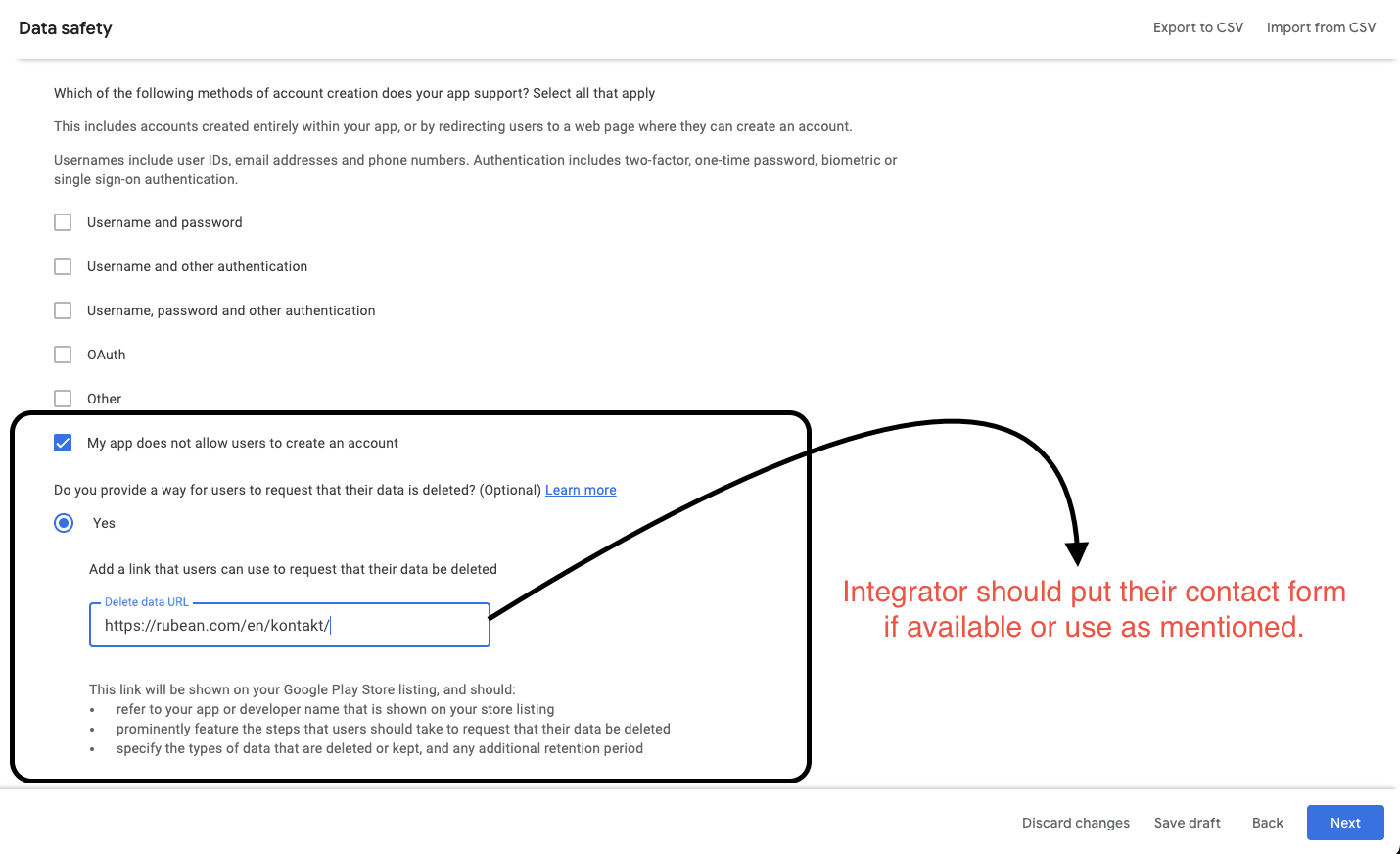 Click on Next and scroll down. Check Device or other IDs.
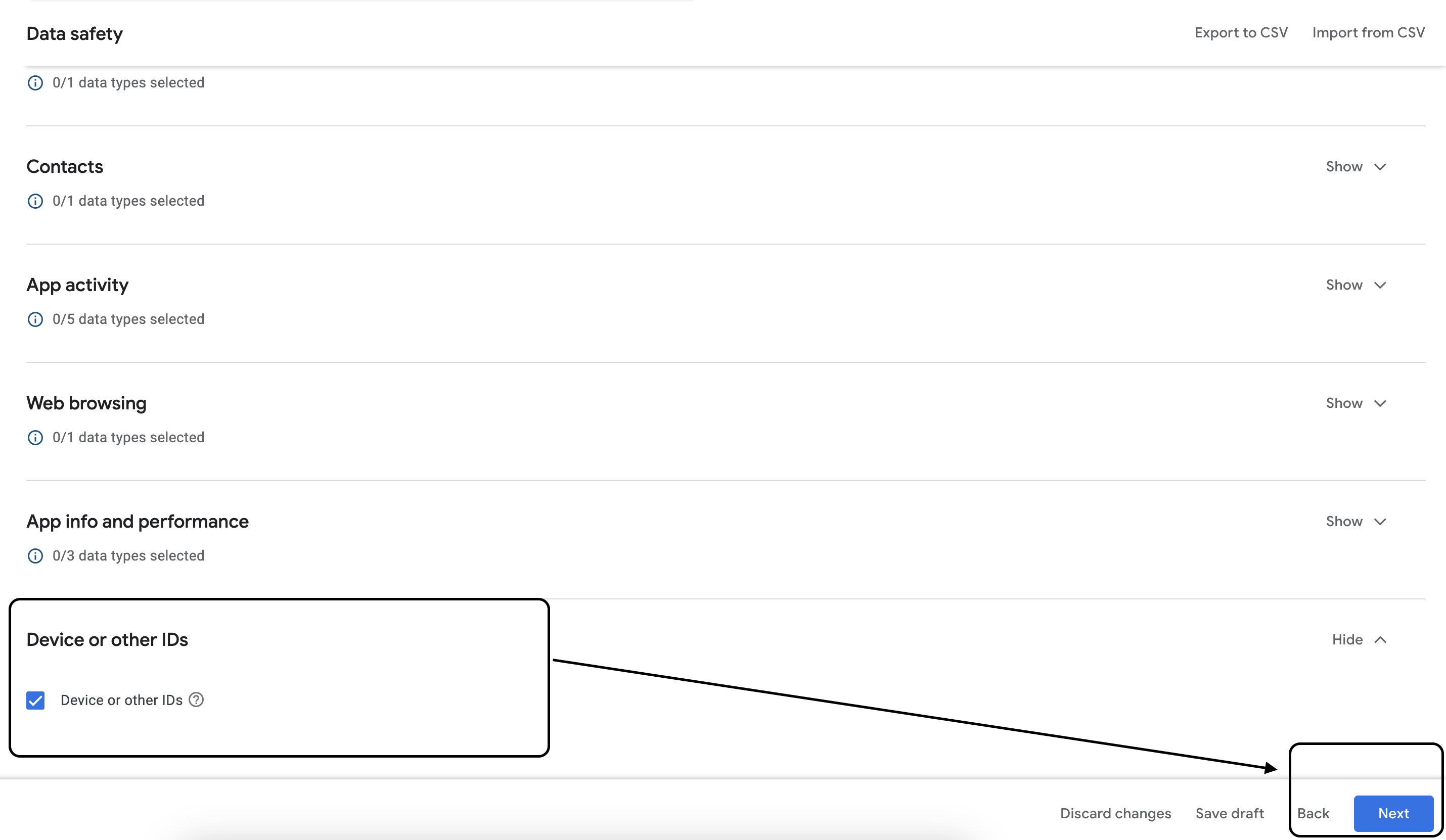
Data types
Click Next
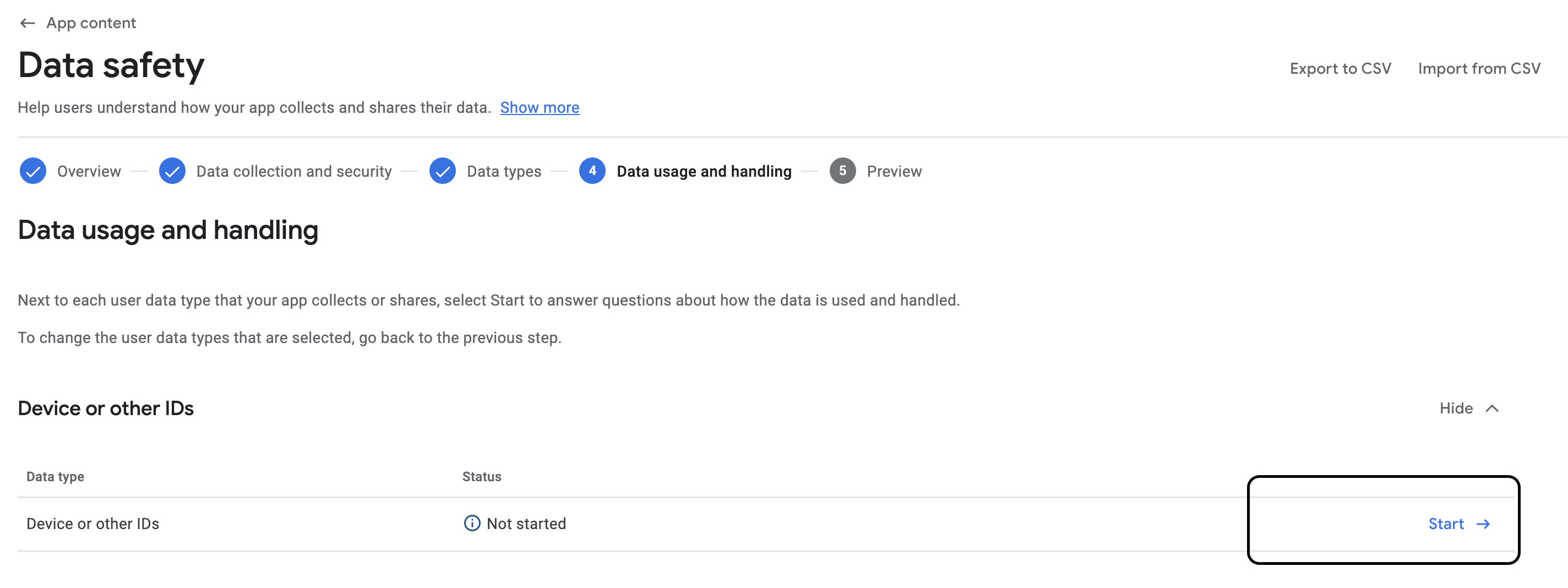
Data usage and handling
Click Start
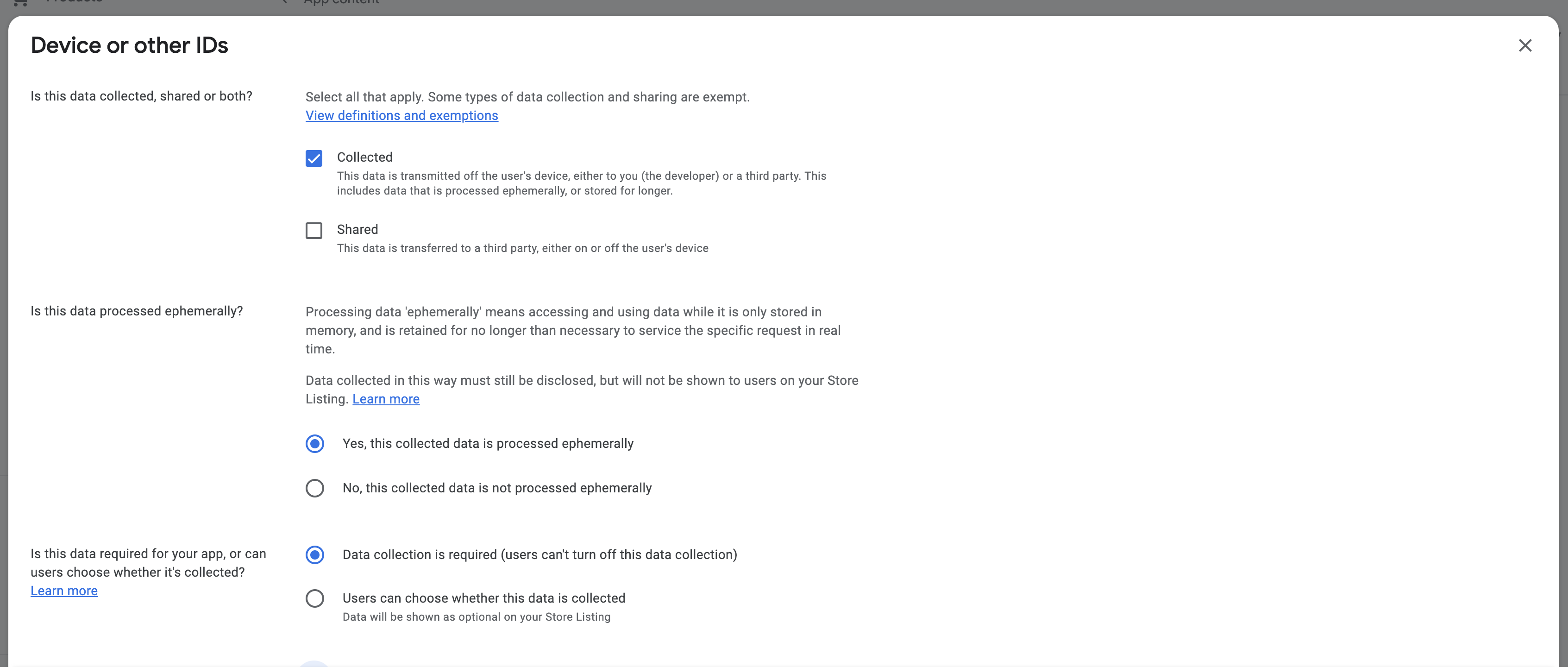
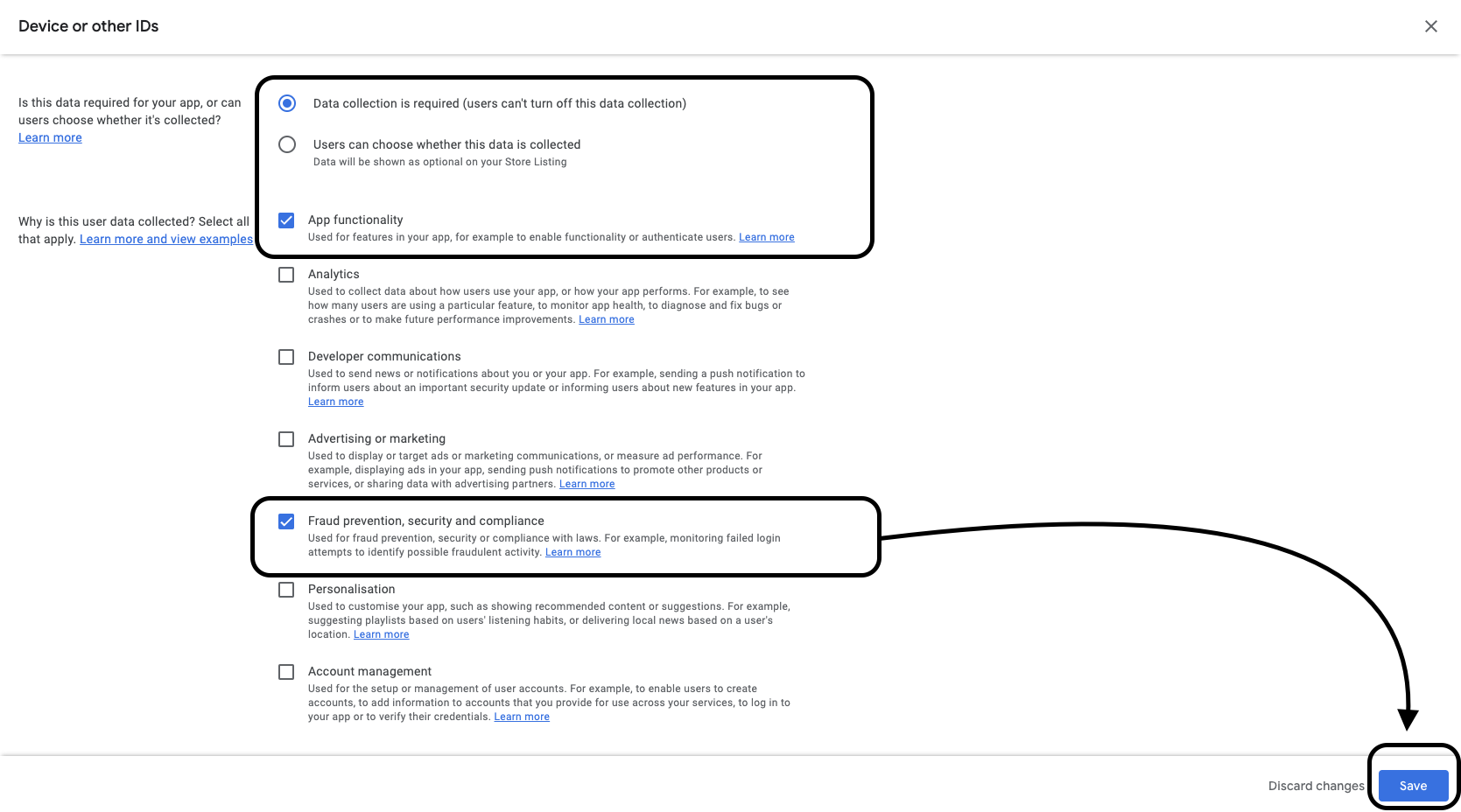
 Answer the questions as shown below and click Save.
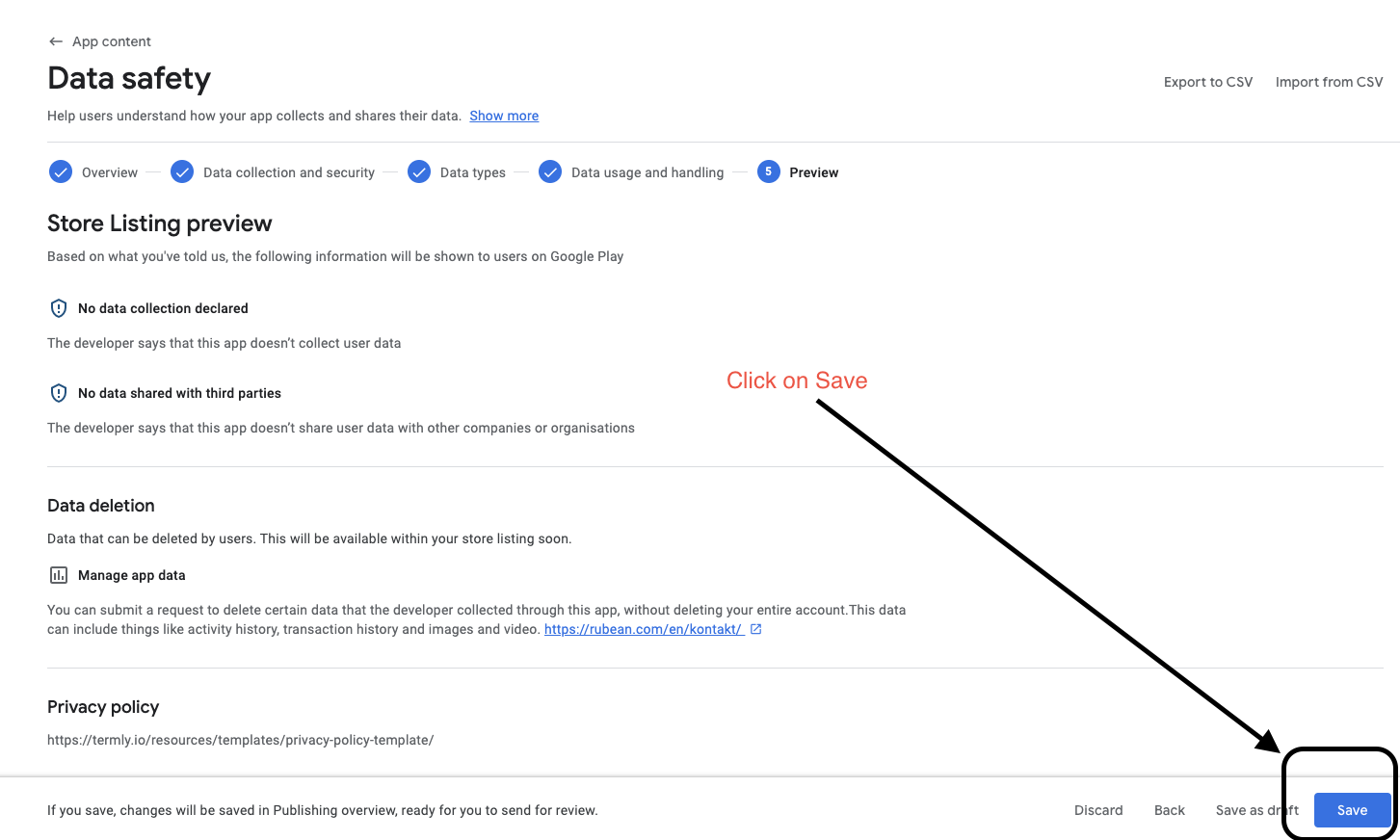
Preview
Click Save.
Testing instructions
During every Play Store review, there is a phase where a tester installs the app and tests its behavior.
PhonePOS is a payment app and thus has to restrict certain system settings.
The implementation of these restrictions is part of our certification and cannot be removed.
Some of these measures are:
- Detecting ADB
- Detecting SHOW_TAPS
- Detecting POINTER_LOCATION
You can find a more detailed description about these measures in Runtime checks
It is possible that the app is rejected due to the above-mentioned restrictions. We had good success in solving these rejected reviews by advising the tester to turn off ADB and other settings. To do this, please follow the below instructions.
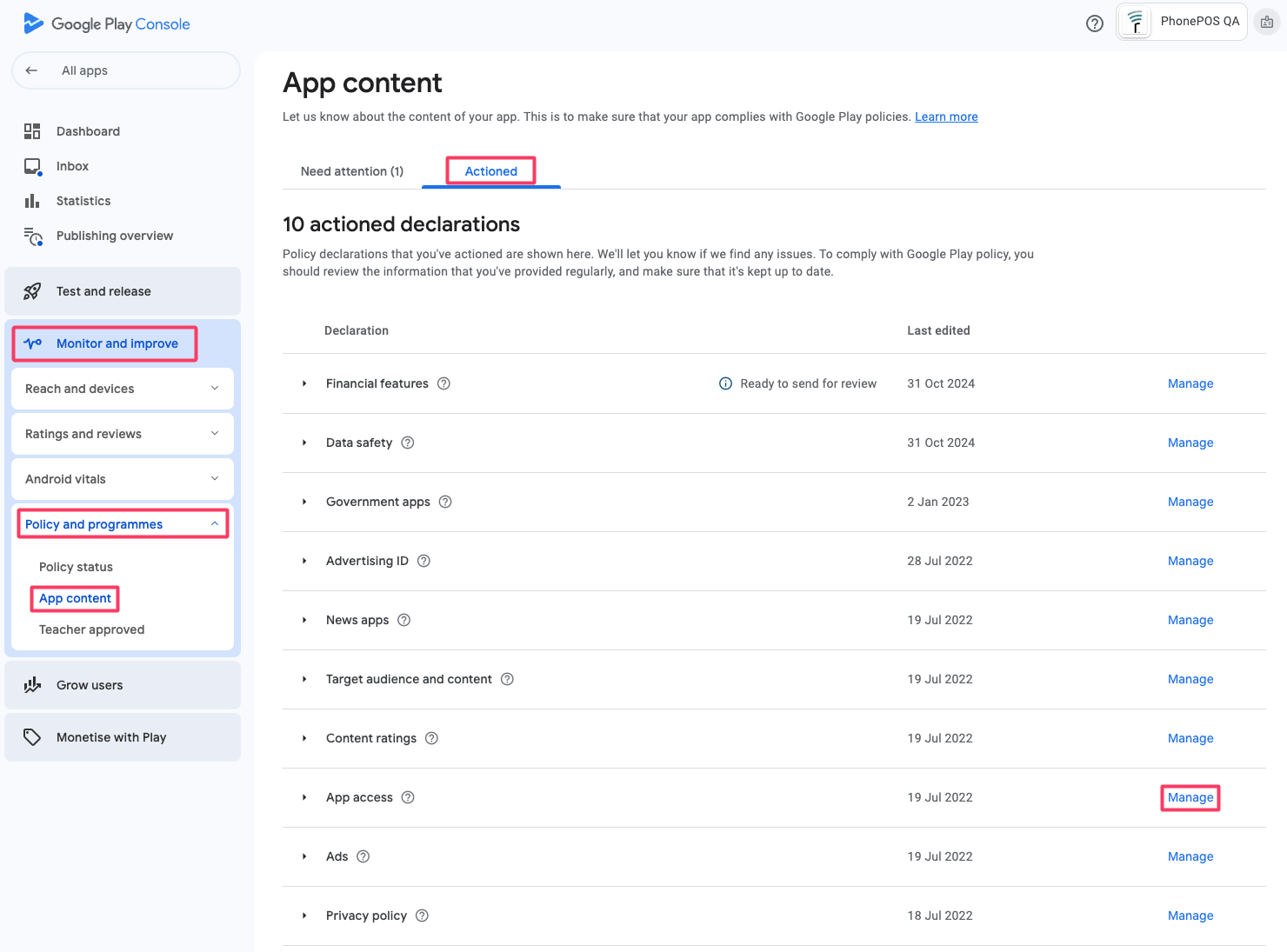
Select App Access
Select your app in the Play Console, then Monitor and Improve -> Policy and programmes -> App content -> Actioned. Finally, click Manage.
Add test instruction
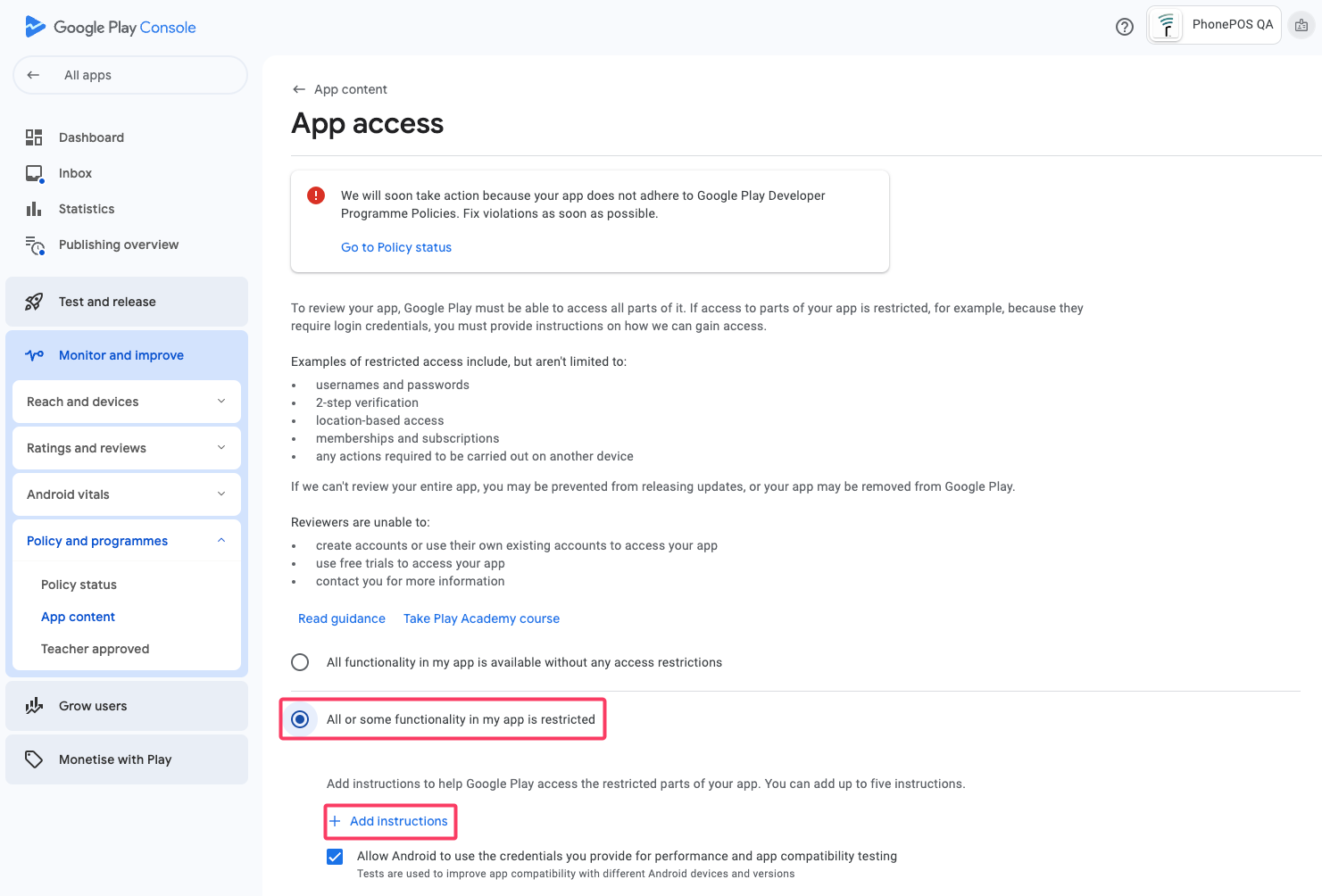
In the following screen you will find guidance on how to direct testing during the review. In this guide we specifically advise you to add an instruction about security detections. Other instructions that are specific to your app can also be added in a separate instruction.
To add a new instruction click "All or some functionality in my app is restricted", then "Add instructions".
In the below page you are presented with multiple text fields.
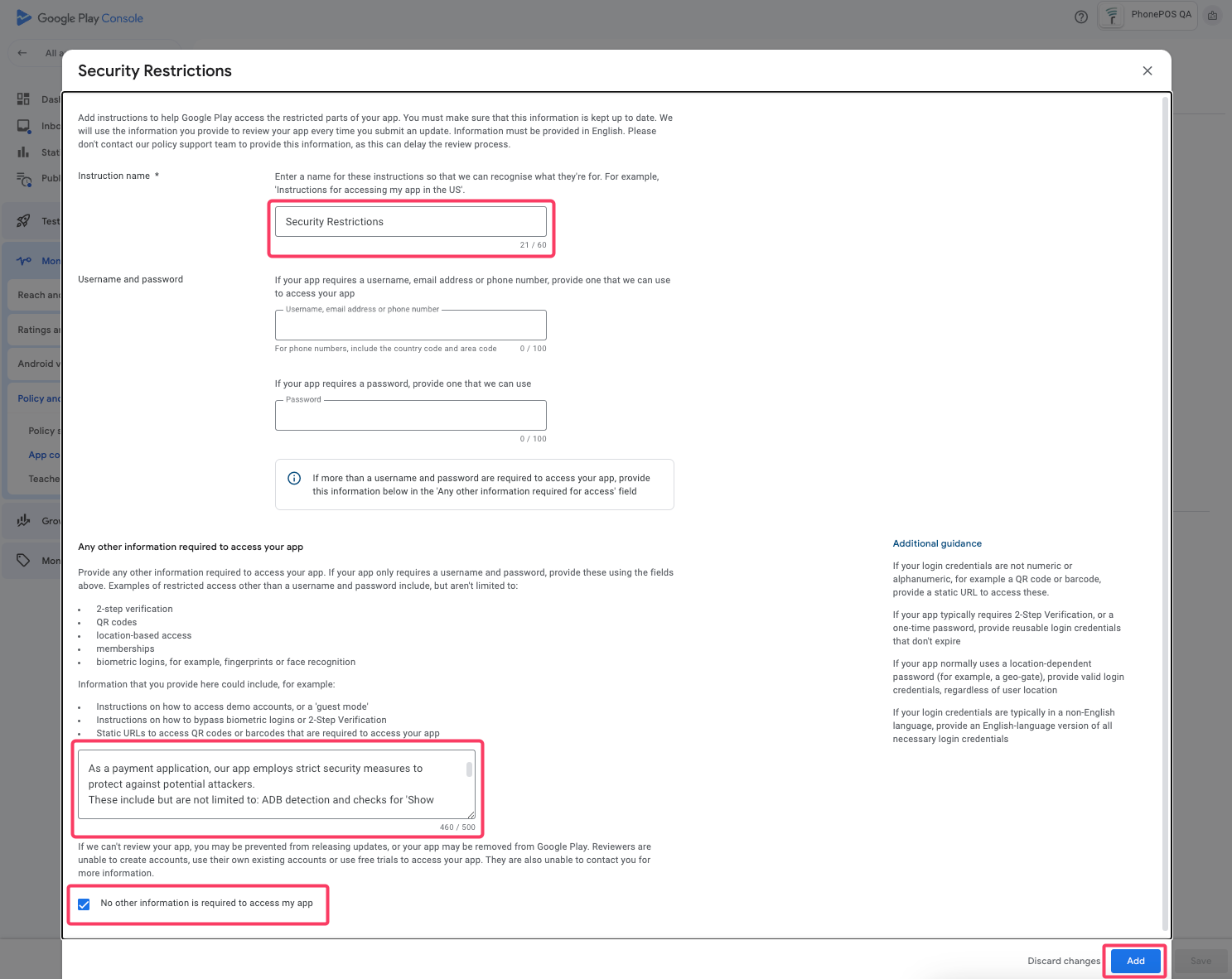
Please fill in the values as shown.
- Instruction name:
Security Restrictions
- Other information required to access your app:
As a payment application, our app employs strict security measures to protect against potential attackers.
These include ADB detection and checks for 'Show Taps' and 'Pointer Location'.
The app is also designed to run only on real devices with Play Services, not on virtualized ones.

For secure testing, please disable the following settings in 'Developer Options':
 - USB debugging
 - Wireless debugging
 - Show taps
 - Pointer location.
- No other information is required to access my app:
✅
Foreground Service Type
From Android 14 on, it is mandatory to declare a Foreground Service Type for all Foreground Services. PhonePOS defines two Foreground Service Types:
FOREGROUND_SERVICE_SPECIAL_USEFOREGROUND_SERVICE_DATA_SYNC
The reason for the inclusion of these types will be queried on the initial upload of the app or on later app updates if the app has already been uploaded.
You will be asked for an explanation for both types and an additional video.
Please submit the following data to Google for a review.
FOREGROUND_SERVICE_DATA_SYNC
Text:
This app is a point-of-sale solution and can accept payments.
Not in the sense of Google Pay, Apple Pay or regular credit cards (giving out payments to merchant) but in the sense of a card terminal (merchant receives payment over our app).

We use the FOREGROUND_SERVICE_DATA_SYNC permission to keep a monitoring process active that regularly synchronises with our backend.
We need to have this process active because we need to be able to control the state of the payment terminal and also remove all cryptographic keys in emergency cases.
Our customers also expect a constant display of the terminal state as a notification so they can check if they can send out payments before they trigger it.
Apart from the initial provisioning flow, this app is only called from other apps and cannot trigger payments on its own.
Otherwise it only runs in the background.

We pay close attention to the battery usage of our app.
Video:
https://www.youtube.com/watch?v=CAfdbftufps
This video is unlisted and thus only accessible via the provided link. Please do not share this video with others.
FOREGROUND_SERVICE_SPECIAL_USE
Text:
This app is a point-of-sale solution and can accept payments. Not in the sense of Google Pay, Apple Pay, or regular credit cards (giving out payments to merchant), but in the sense of a card terminal (merchant receives payment over our app).

We use the FOREGROUND_SERVICE_SPECIAL_USE permission to keep the internal payment terminal active.
As the terminal needs to be well protected against attacks a code protection is applied to comply with mandatory regulation rules.
This protection does slow down the startup of the terminal significantly.
Our customers expect to perform payments quickly (within a few seconds), and this is only possible if the terminal is already prepared and running in the background.
We do receive complaints from customers when the terminal is not in the background.

Additionally, the terminal synchronises new EMV configurations (configuration files for NFC transactions) and other terminal configurations in the background if needed (less than once per week).
Apart from the initial provisioning flow, this app is only called from other apps and cannot trigger payments on its own.
Otherwise it only runs in the background.

We pay close attention to the battery usage of our app.
Video:
https://www.youtube.com/watch?v=CAfdbftufps
This video is unlisted and thus only accessible via the provided link. Please do not share this video with others.