Adaptive UI Release
Available with SDK version 4.01.25.XXXX.
We're pleased to announce a major update to the PhonePOS user interface. The new Adaptive UI is a redesigned payment screen that improves the payment experience across devices while offering greater flexibility and customization. Migration is optional. The current terminal UI remains the default, and nothing changes unless you enable the new UI. We recommend testing it to experience the usability and visual improvements firsthand.
What's new?
Our new Adaptive UI release introduces several new features.
NFC Indicator
Customer feedback and field tests showed that the biggest hurdle in PhonePOS payments is customers not finding the right place to tap their card or phone. The NFC Indicator provides a visual guide that points them to the device's NFC position. It is powered by our internal model database, which maps over 1,000 device models to their exact NFC antenna coordinates and screen dimensions - allowing the animation to show precisely where to tap on each specific device.
The following video was recorded on a Zebra TC22, which has its NFC antenna at the top center of the back:
Screen adaptation
Devices today come in a wide range of form factors, sizes, and resolutions. Some screens offer generous space, while others provide very little. NFC antennas may be located on the back of the device, embedded within the display, or just outside the screen along any of its edges. We invested considerable effort in ensuring that our new Adaptive UI fits perfectly across all form factors and can indicate any possible NFC antenna location. This guarantees a consistent experience on every device. Below are a few examples of how the Adaptive UI adapts to different screen sizes. Please note that we are not limited to the devices shown here.
Some devices do not properly communicate the correct properties of the connected display. If you find that our UI is not properly displayed on a specific device, please reach out to us. We will fix it.
| Regular phone | Small square device |
|---|---|
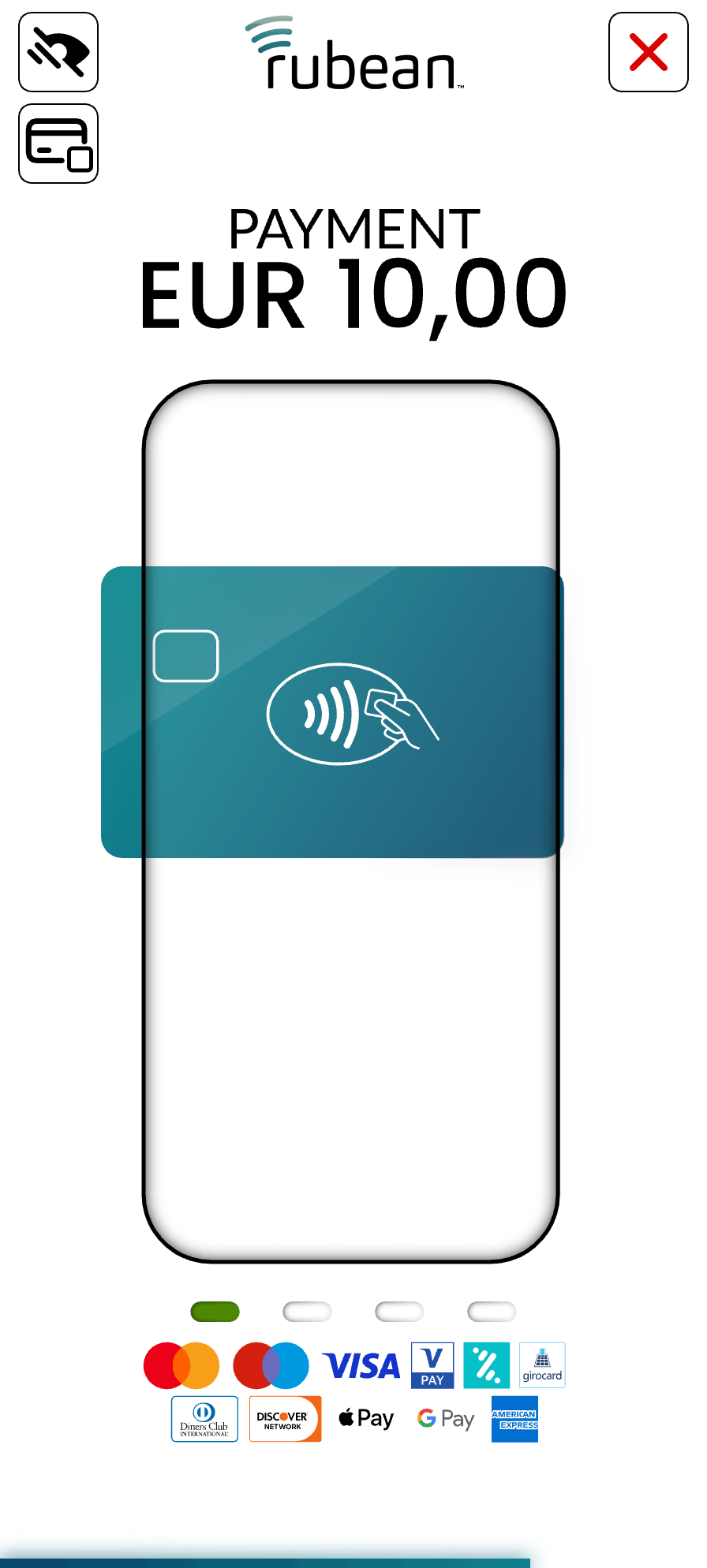 | 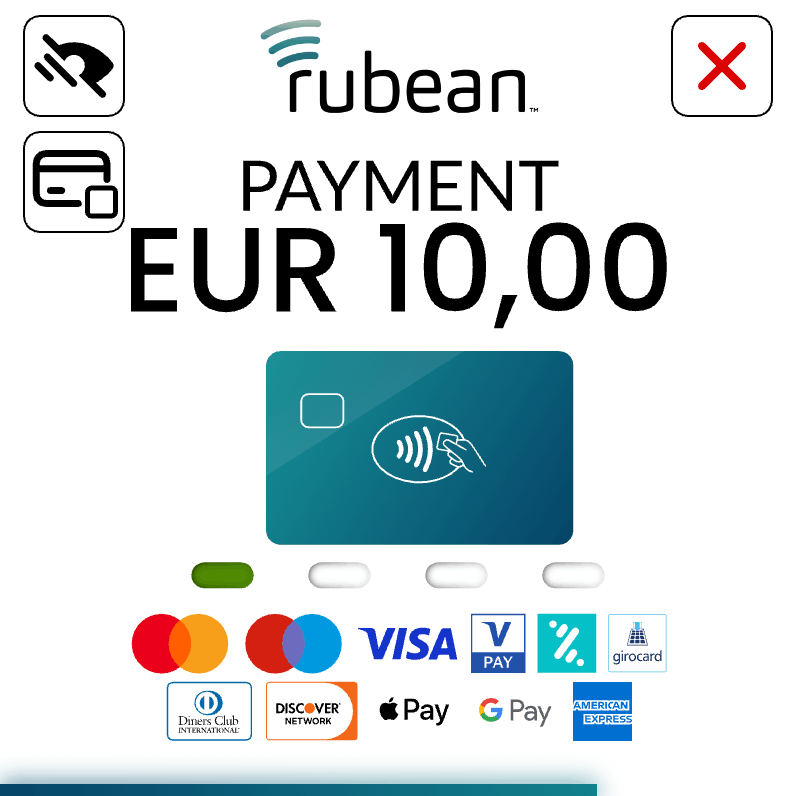 |
| Fold phone closed | Fold phone open |
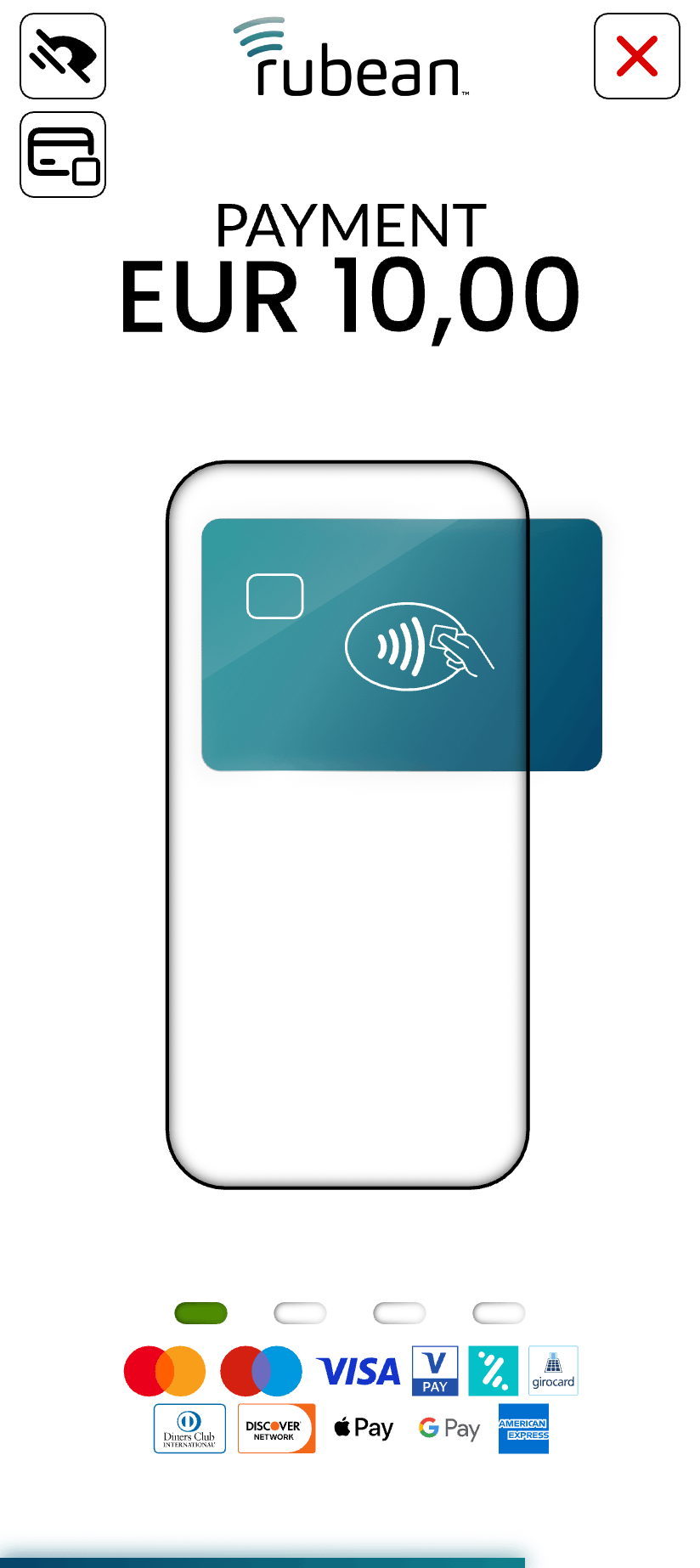 | 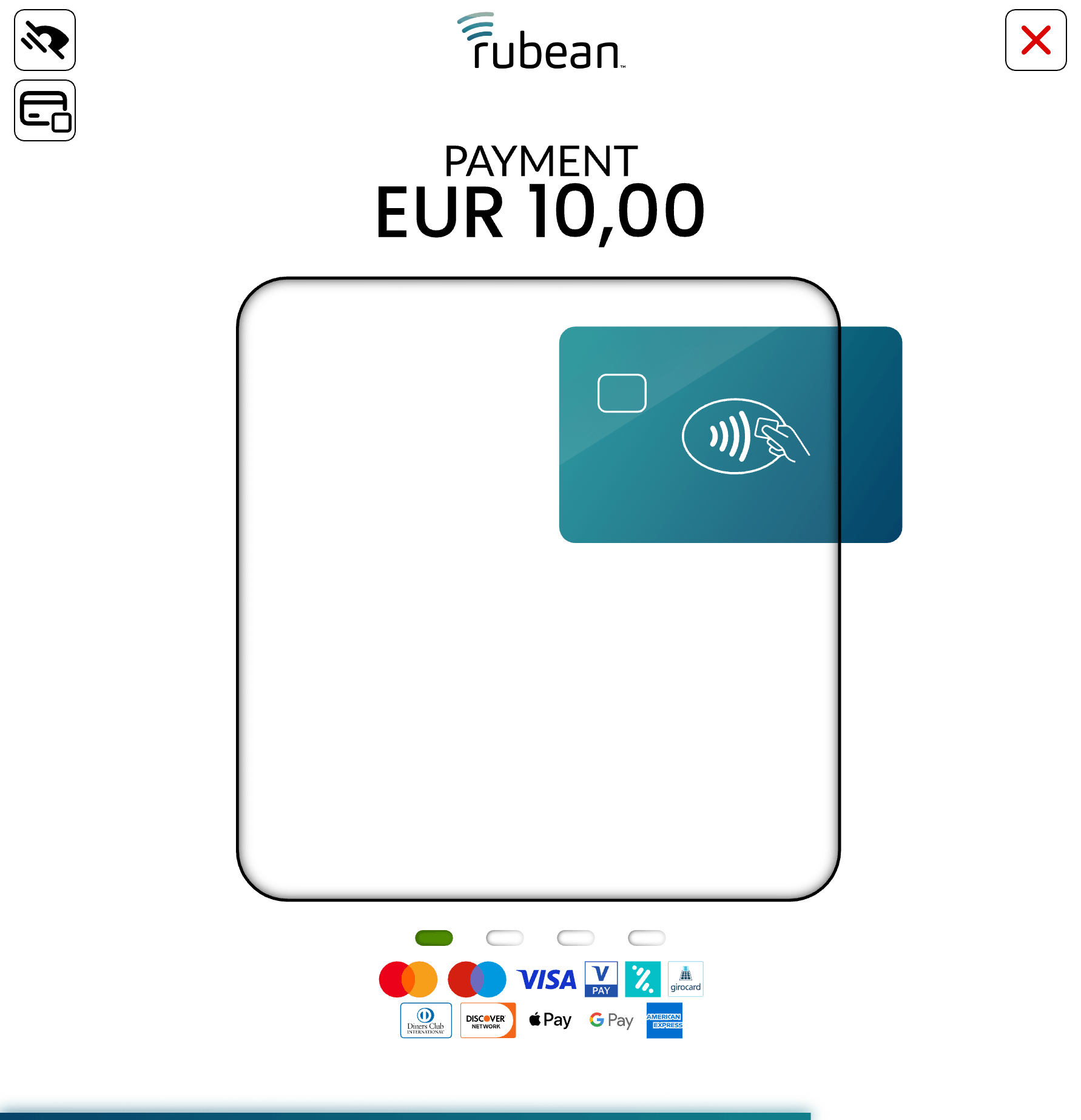 |
| Tablet with card reader in display | |
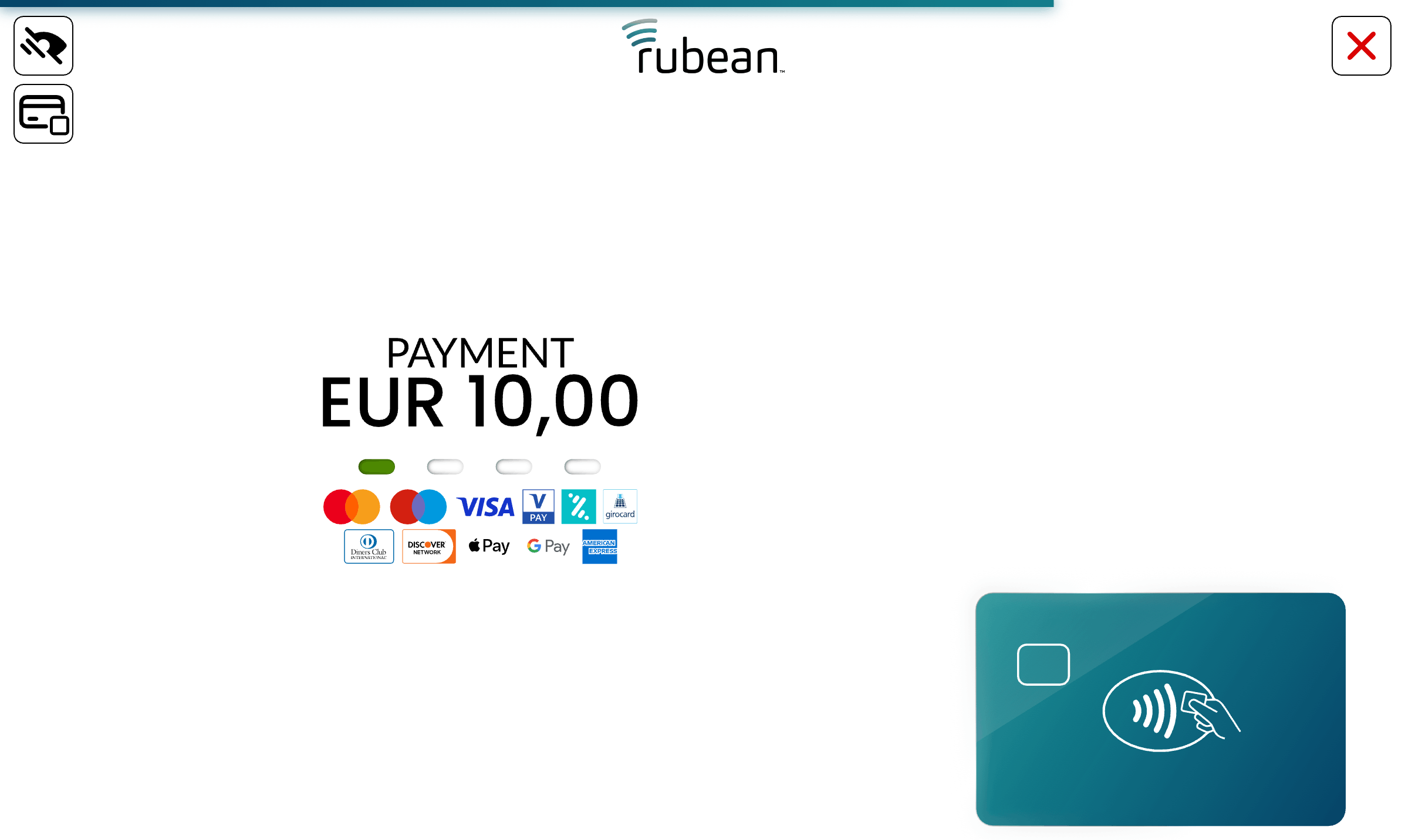 | |
| Tablet with external card reader | |
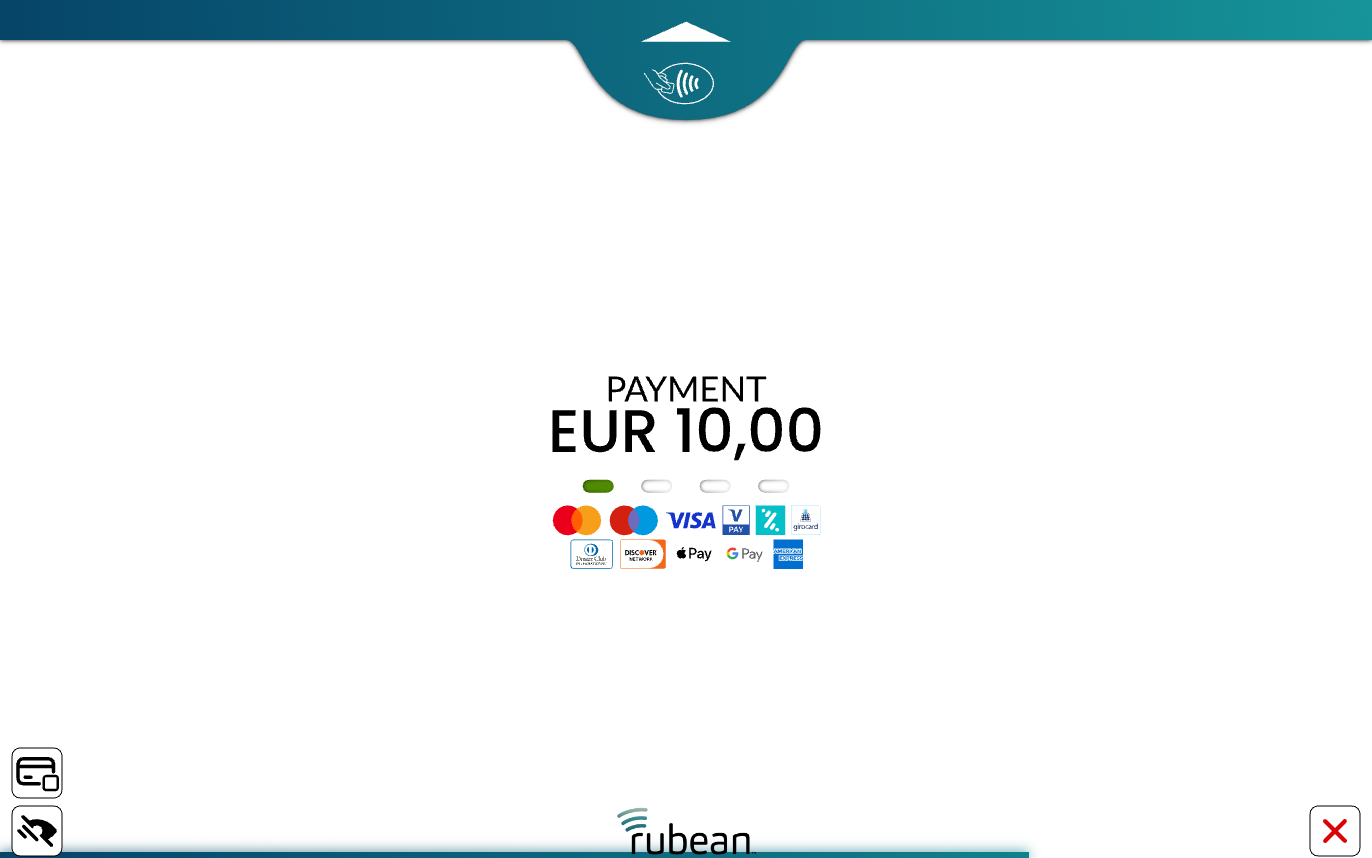 | |
Light and dark mode support
Modern operating systems offer support for light and dark mode. We also support this to make our UI look great on every device it is installed on. The following video was recorded on a Pixel 7a:
Customization for your brand identity
We provide you with extended branding options to reflect the heart of your brand identity in the terminal. Please find the customization options in the following picture:
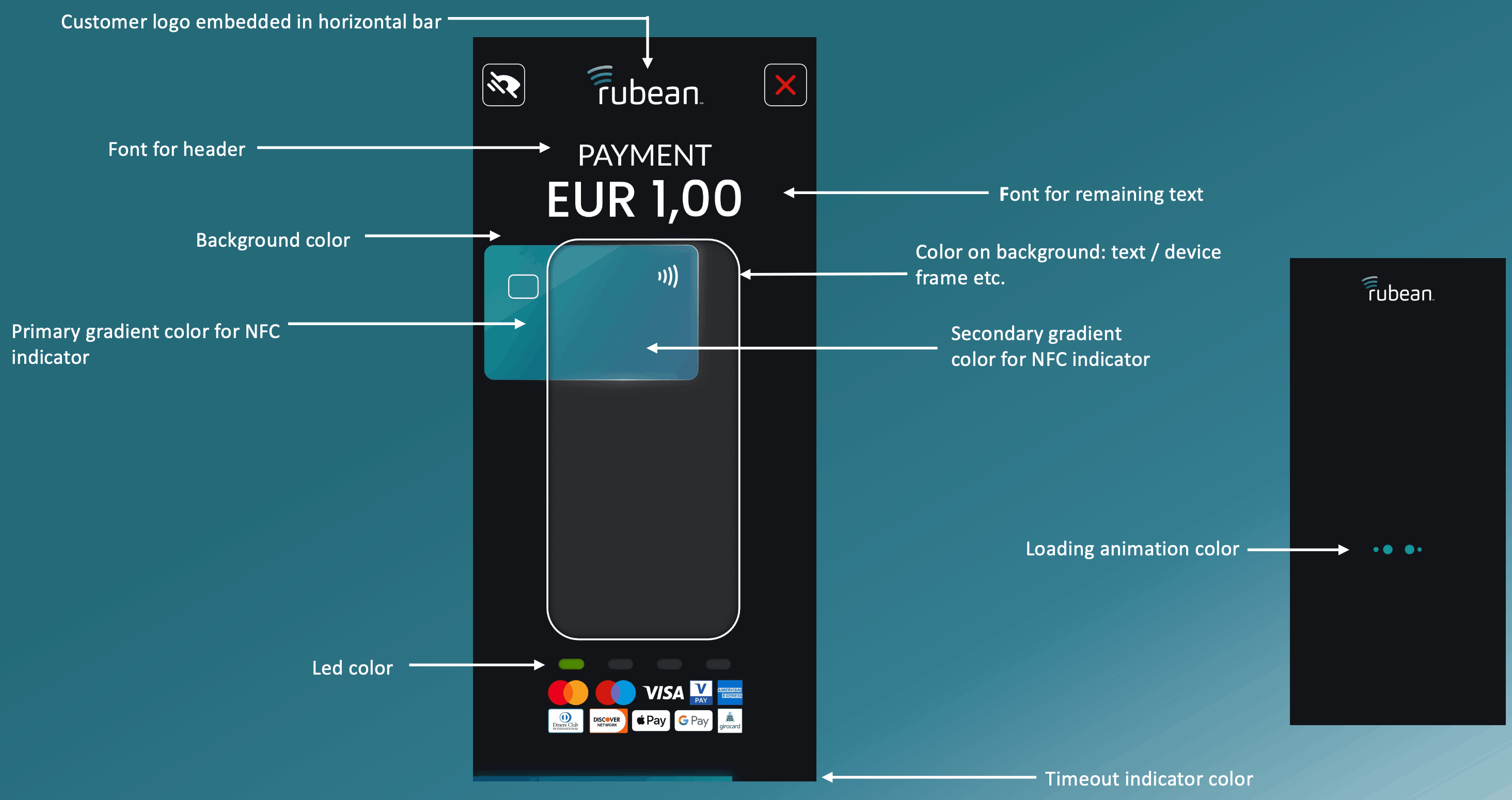
We are happy to assist you in making your terminal look as great as it can be.
We support different colors for the light and dark theme modes. If you want this feature to be enabled, please send us your preferred colors for both modes.
Managing rollout, theming, and activation
SDK version 4.01.25.XXXX optionally offers the Adaptive UI. If you want to enable the Adaptive UI as the default for your platform, our team can support you. Changes can be pushed from our backend to:
- All terminals
- Specific MIDs
- Specific TIDs
All changes apply immediately after restarting the device.
We can also control whether the Adaptive UI toggle is visible at all and what the default for merchants is.
Optional Activation
If the Adaptive UI toggle option has not been deactivated for your terminal, you can manually activate the Adaptive UI by doing the following:
- Drag down the notification bar.
- Select Terminal Management.
- Go to Configurations.
- Under Features, enable Adaptive UI.