Device Integrity
To ensure the device remains secure and has not been tampered with, we mandate multiple integrity checks. These include a comprehensive SafetyNet or Play Integrity attestation, specific Key Attestation items, and other essential device characteristics. Following Google's announcement of the discontinuation of SafetyNet, PhonePOS supports Google Play Integrity from version v3.07.00 onwards.
During intensive automated stress testing, we identified that, in rare instances, the Play Integrity API services may crash. This led to failed attestation requests with a negative result. In such cases, we will still perform a SafetyNet attestation to ensure terminals can continue processing payments.
This chapter provides guidance on verifying whether your device meets the required integrity standards. A positive result is not a guaranteed indication that PhonePOS will function perfectly, but it is a strong indicator. If your device fails the integrity check, please contact us for assistance. We may be able to offer a custom solution. Note that the combination of Play Integrity and Key Attestation is the most cost-effective option.
Preparation
To quickly verify attestation, we recommend downloading the following applications, which implement the same attestation methods that we use.
SPIC
SPIC will help you to verify the Play Integrity & SafetyNet attestation status.
SPIC on Play Store

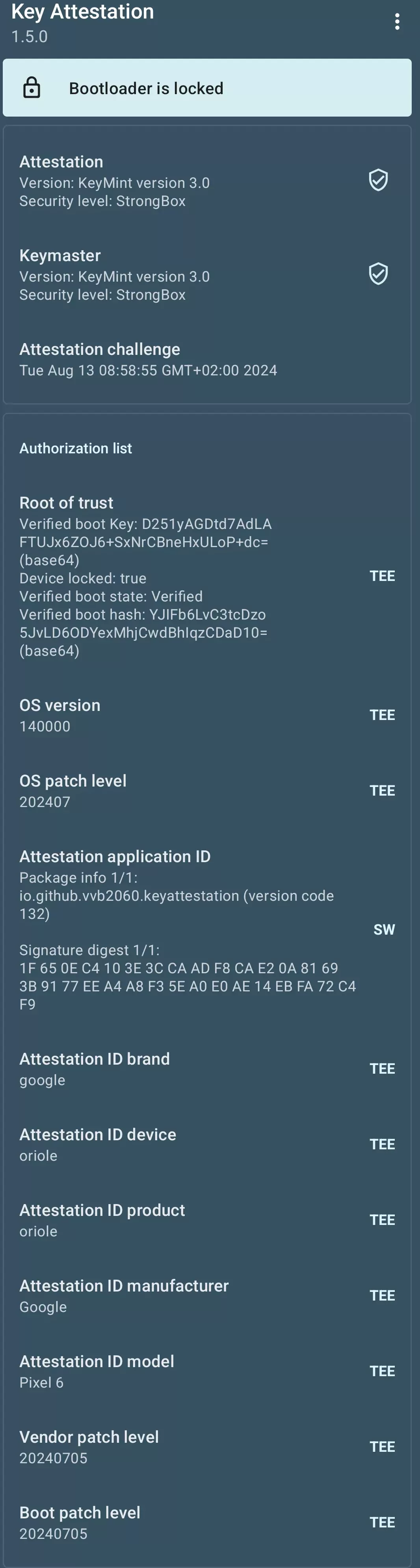
Key Attestation Demo
Key Attestation Demo will help you to verify the Key Attestation status.
Key Attestation Demo on Play Store

Evaluation
This chapter outlines how to conduct the analysis and specifies the attestation results required.
Play Integrity Attestation
Process
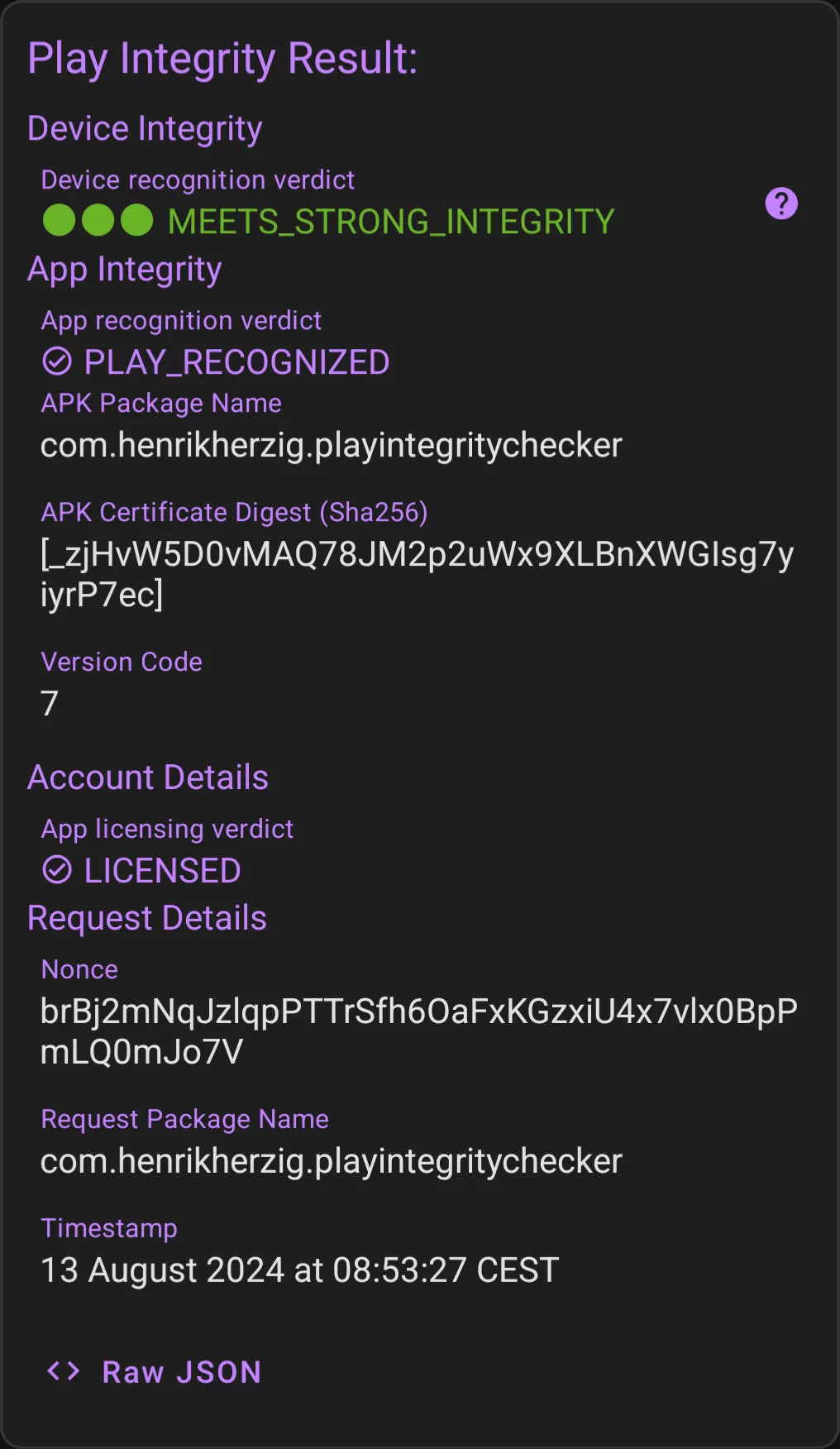
- Open the SPIC app
- Make sure the “Play Integrity” section is selected at the bottom
- Leave the request settings as they are (Nonce: local, verdict: local)
- Click “Make Play Integrity Request”
- Scroll down so that the line “Play Integrity Result” is at the top of the screen
- Take a screenshot or if not possible a picture with a second phone
Requirements
- Device integrity: MEETS_DEVICE_INTEGRITY or MEETS_STRONG_INTEGRITY (better)
Example
SafetyNet Attestation
Process
- Open the SPIC app
- Make sure the “SafetyNet” section is selected at the bottom
- Leave the request settings as they are (Nonce: local, verdict: local)
- Click “Make SafetyNet Attestation Request”
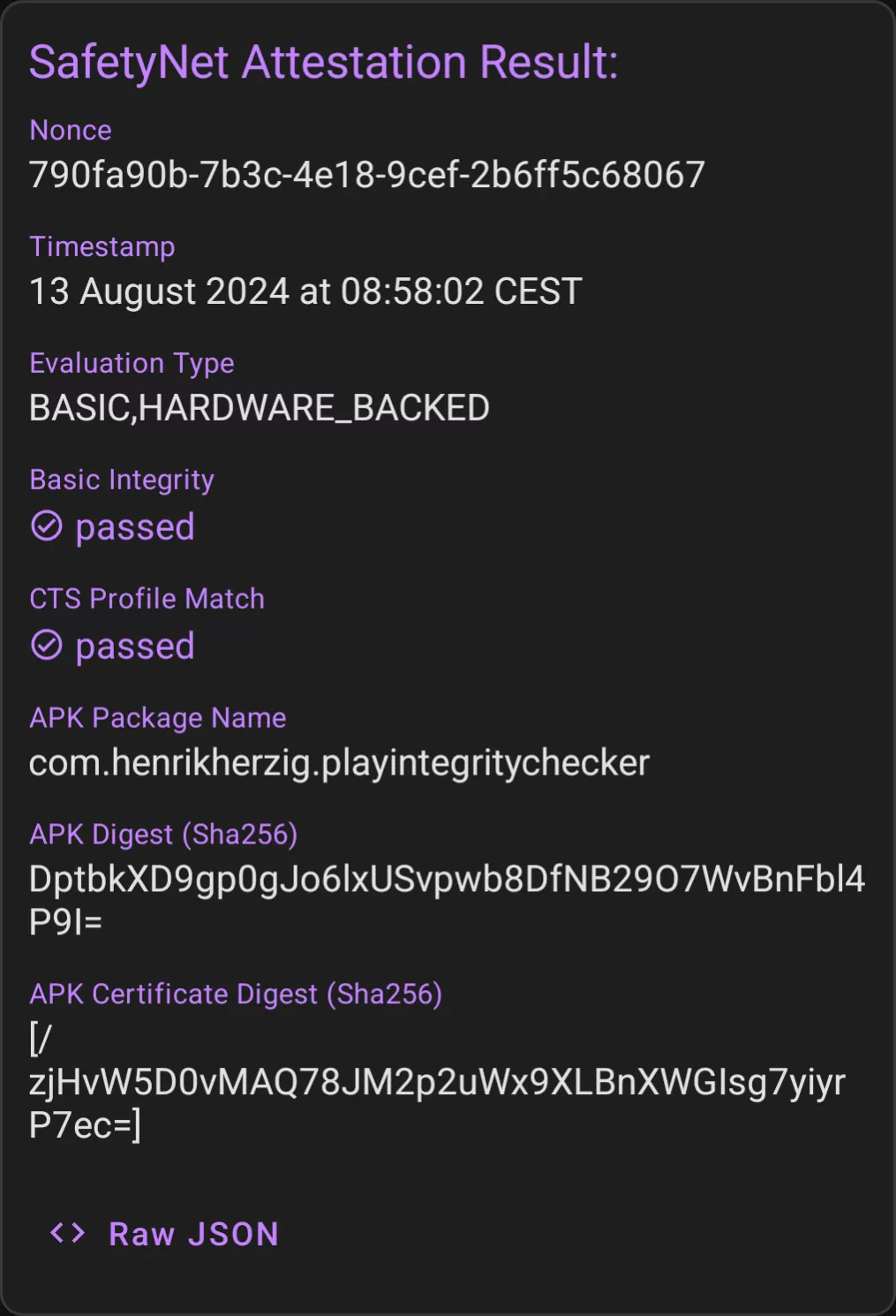
- Scroll down so that the line “SafetyNet Attestation Result” is at the top of the screen
- Take a screenshot or if not possible a picture with a second phone
Requirements
- Basic Integrity: Passed
- CTS Profile Match: Passed
Example
Key Attestation Demo
Process
- Open the “Key Attestation Demo” app
- Make a screenshot or if not possible a picture with a second phone
- Verify that the bootloader state is readable
- Verify that the “Authorization list” entry is visible.
- If it is not visible take a second screenshot (or picture) with this entry visible
Requirements
- Bootloader state: locked
- Security level: TrustedEnvironment or StrongBox (better)
- Verified boot state: Verified
Example