Troubleshooting
Encountering Errors with PhonePOS? Let’s Troubleshoot!
Check Security Measures
First, ensure that the issue isn’t caused by any security measures listed in Security-Checks.
Prepare Support Ticket
If you’re confident that no security measures are triggering the issue, follow the guides below to collect all logs. After finishing all tasks, send an email inquiry to our Integration Support.
1. Collect PhonePOS API Logs
If you use the PhonePOS API, please collect its log output using this functionality. Please attach the captured API logs to the support email.
2. Collect Logcat Logs
Remove any package filter in Android Studio, reproduce your case, and save the Logcat logs.
Alternatively, open your terminal, capture using adb logcat > logcat.txt, reproduce your problem and stop with Ctrl+C.
Please attach the captured logcat logs to the support email.
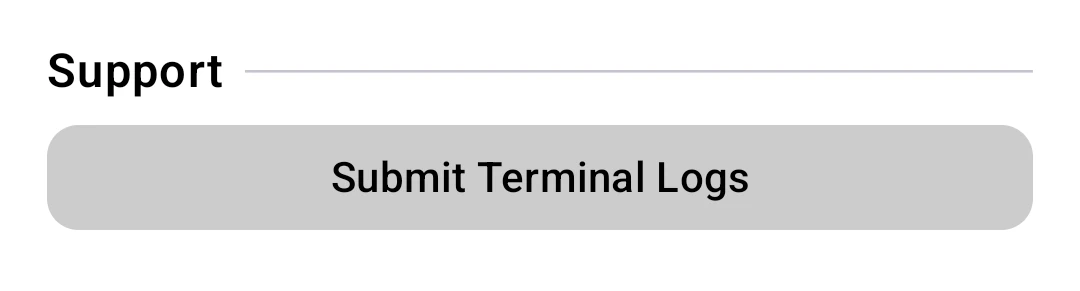
3. Submit Terminal Logs
Terminal logs are not openly accessible. The actions below trigger automatic submission of internal PhonePOS SDK logs to support. You just need to execute the SDK log submission; there is nothing to attach to the support email in this step.
Option A:
Through an API call, see here.
Option B:
Through the settings page, see instructions below.
- Open PhonePOS either by
- directly opening the PhonePOS APK (if possible)
- calling showStatusAndSettings
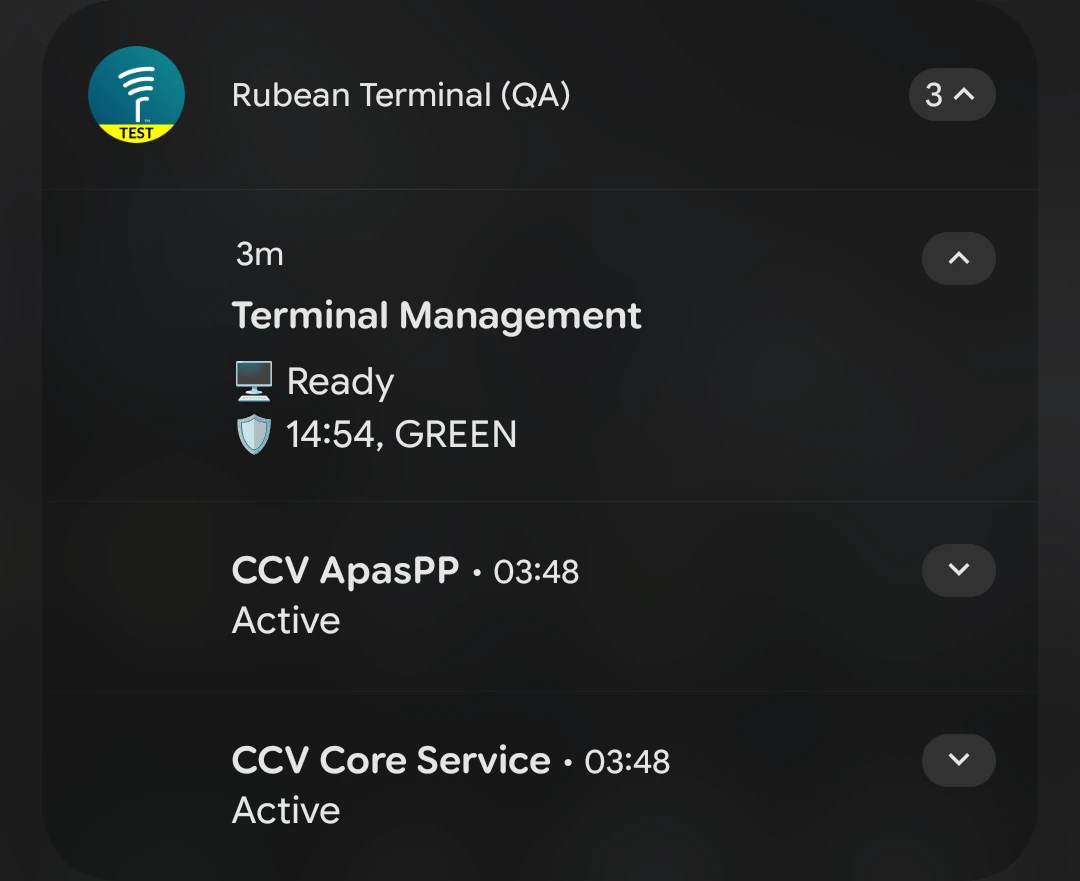
- clicking the unfolded Terminal Management notification
- Navigate to the settings by clicking the gear icon

- Report all SDK logs to our support using the Submit Terminal Logs button